2.2.10.14 Table
Properties of Table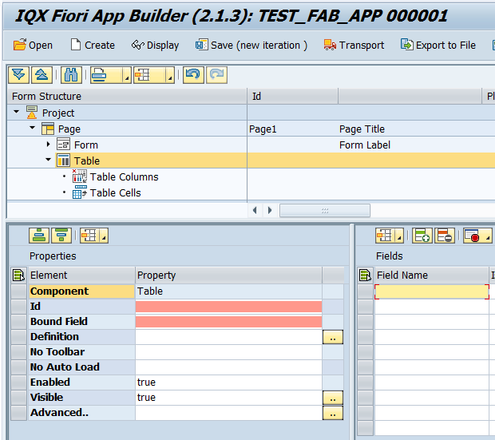
- ID – unique identifier of the table
- Bound Field – table array assigned to the table
- Definition – opens up the Definition Dialog Screen
- No Toolbar – shows/hides the table toolbar
- No Auto Load – setting to prevent loading the data into the table
- Enabled - set a boolean value or a variable with type boolean from the Model to control the enable property
- Visible - set a boolean value or a variable with type boolean from the Model to control the visibility property
Advanced - properties of the control not available in the above list can be added here.
Setting Additional Properties provides further information about the Advanced property
Definition Dialog Screen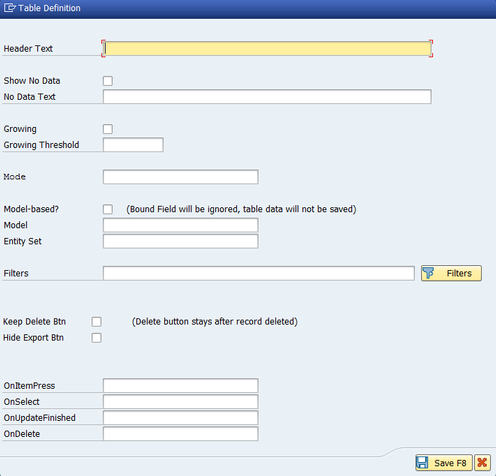
- Header text – table heading/description
- Show no data – activates the text assigned in the “No data text” definition when the table is empty
- No data text – text to be displayed when the table is empty
- Growing – activates the Growing property of the table
- Growing Threshold – defines the number of entries to be requested from the model for each grow (e.g. setting it to 100 will request and show the first 100 entries)
- Mode – selection for the table mode
- Model based? – sets the table to always refer the entries to the model defined
- Model – model to be used
- Entity set – entity set to be used based from the model assigned
- Filters – set the filters to be passed onto the model
- Keep delete button – keeps the delete button after records have been deleted
- Hide export button – hides the export button from the toolbar
- OnItemPress – executes the javascript function assigned for this event
- OnSelect - executes the javascript function assigned for this event
- OnUpdateFinished - executes the javascript function assigned for this event
- OnDelete - executes the javascript function assigned for this event
Step-by-step guide
- Right click on a Page and select Add Table--->Table

- A table has been created
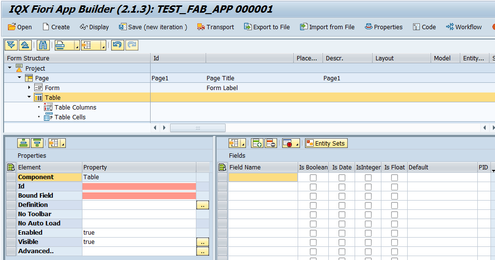
- Right Click on the Table Columns to add column headings
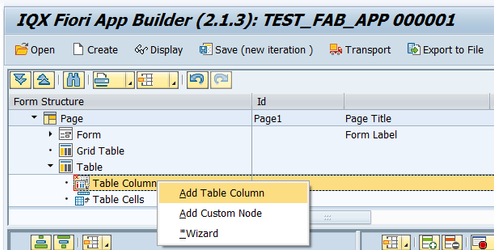
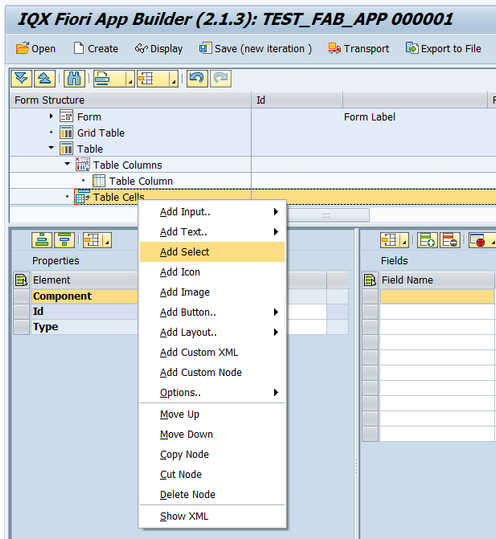
- Right Click on the Table Cells to add the corresponding UI Element
Related articles
, multiple selections available, Use left or right arrow keys to navigate selected items